

Editorial review: October 8, 2026. Images are AI-generated editorial illustrations, not documentary photographs.
WordPress 7.1.3 security update: what changed in WordPress 7.1.3
WordPress released version 7.1.3 on October 6, 2026. The official announcement describes it as a security and maintenance release containing seven security fixes and four bug fixes, and recommends updating sites immediately. For bloggers, freelance website managers and online store owners, the useful response is a controlled update followed by a short verification routine. Read the original source.
A security release is not just a new feature to evaluate when convenient. It addresses weaknesses that can affect the confidentiality, integrity or availability of a site. That does not mean every website is already compromised, and the announcement should not be turned into a claim that your particular installation has been attacked.
This guide summarizes the official release and provides a practical maintenance checklist. It is not an exploit guide, a substitute for incident response, or evidence that any specific theme or plugin is safe.
What the official security announcement says
The release announcement lists several classes of issues, including stored cross-site scripting involving the Comments administration page, a denial-of-service issue in a WordPress HTTP method, a second-order SQL injection issue involving WordPress WXR export, and disclosure of comments on private and unpublished posts. Other fixes concern Author-role sticky-post behavior, Imgur embeds and action-name collisions.
These descriptions matter because they cover more than the public homepage. Administration interfaces, exports, user permissions and embedded content can all form part of a site’s security boundary. A site that looks normal to visitors can still need a security patch.
Use the official release notes for the authoritative list. Avoid copying unverified vulnerability claims from social posts, and do not test attack techniques against websites you do not own or have permission to assess. Updating and checking your own site is a defensive maintenance task.
Step 1: Confirm the site you are updating
Sign in through your known administration address rather than an unexpected update link in email. In Dashboard → Updates, check the installed WordPress version. If your host already applied an automatic update, verify the version instead of assuming that you still need a manual installation.
Record the site address, current version, active theme and important plugins. For a client website, confirm who is authorized to approve maintenance and when the site can be briefly unavailable. A small blog and a busy store may need different maintenance windows.
Do not begin by updating unrelated settings, changing payment providers or installing new optimization plugins. Keep the change set focused so that any regression is easier to identify.
Step 2: Take a complete, restorable backup
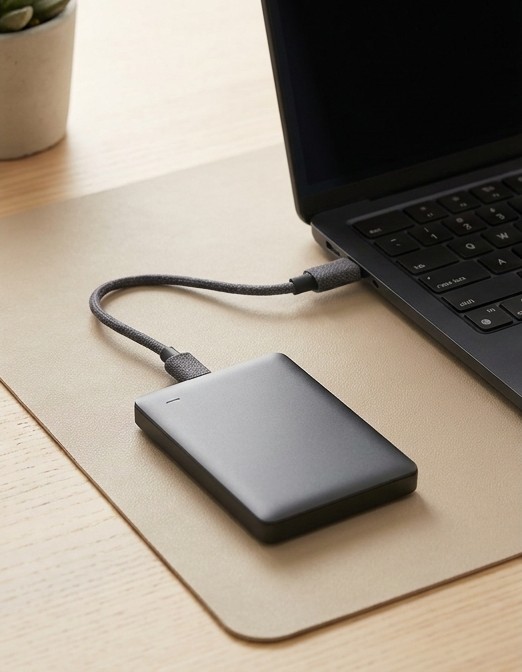
A WordPress content export is useful, but it is not a full website backup. A recovery backup normally needs the database and relevant files, including uploads, themes, plugins and configuration. Use your hosting backup system or a backup tool you trust, and confirm that you know how to restore the site.
Check the backup’s timestamp and storage location. If possible, keep a copy away from the same server. A backup that exists only on a failed or compromised machine may not help when it is needed most. Protect backup access because the files can contain sensitive information.
For a store, understand the restore implications. Restoring an old database can remove orders placed after that backup. Choose an appropriate maintenance window and discuss recovery with your host before relying on a rollback as a routine solution.
Step 3: Test and apply the update
If staging is available, copy the site into an isolated test environment and verify the update there. Prevent staging from sending live customer emails, accepting real payments or being indexed as a duplicate public website. Staging is especially helpful when custom code, payment integrations or older extensions are involved.
Apply the core update through Dashboard → Updates or your host’s supported process. The official announcement also links to downloads from WordPress.org. Do not download a replacement package from an unfamiliar mirror. If an update fails, stop and inspect the error instead of repeatedly clicking the update button.
Core, themes and plugins are maintained separately. A patched WordPress core does not automatically patch every extension. Check compatibility and update extensions through trusted sources, while keeping enough records to identify which change introduced a problem.
Step 4: Verify the parts that matter
Open the homepage, a recent article and a category page on desktop and mobile. Test the navigation and search. Check an image-heavy page and any page with embedded content. Clear relevant caches after updating, then verify the uncached behavior if your host provides a safe way to do so.
Submit a test contact form only if you control the receiving inbox and can distinguish the test message. For a WooCommerce store, inspect product pages, cart behavior and checkout. Use the gateway’s supported test mode or a staging environment for payment tests; do not accidentally charge a real customer card.
Confirm that the administration area still loads and that the expected user roles can perform their normal tasks. Check scheduled work, transactional emails and integrations that are important to your business. A visible homepage is only one part of a successful maintenance check.
If something breaks after the update
Write down the exact symptom and the time it started. Look at your hosting logs or ask support for help identifying the error. On staging, isolate whether the issue comes from a theme, plugin or custom integration. Avoid enabling verbose debug output on a public site because it can expose paths or other internal information.
Do not leave the public site on an older vulnerable version as a long-term workaround. If recovery is necessary, work with your host or developer to choose the safest temporary approach and fix the compatibility issue promptly. A rollback can also affect data created since the backup, particularly store orders and customer registrations.
If you suspect compromise rather than a simple compatibility error, preserve relevant logs and seek qualified incident-response help. Installing an update does not by itself remove a malicious user, leaked credential or altered file.
A maintenance habit worth keeping
Keep a short maintenance log: backup time, installed versions, changes made, checks performed and any follow-up tasks. Turn on supported background security updates where appropriate, use least-privilege accounts, and protect administrator access with strong authentication.
The immediate action is to verify your installed version and apply the security release using a controlled process. The longer-term improvement is to make backups, updates and verification a routine rather than an emergency. Security is a continuing practice, not a one-time plugin purchase.
Source and editorial notes
WordPress.org: WordPress 7.1.3 Maintenance and Security Release. This is an independently written explanation with practical editorial recommendations. Product availability, policies and security guidance can change; verify the current official documentation before acting.